Oil SCM Game: Installation Guide
System Requirements
The following are the minimum system requirements to intsall/run this program:
- Microsoft Windows NT Server, Service Pack 4.0, Option Pack 6.0
- Internet Information Server 4.0, this comes with WIN NT Option Pack 6.0
- 128MB RAM
Please note that, Personal Web Server(PWS) on Windows 95/98 will not be useful to run this game. The reason being, PWS can only support 5-6 users simultaneously in a web-server (though it's documented to support 10 users). This game requires minimum of 8 player + 1 administrator = 9 connections / web-clients to simultaneously access the web-server. PWS can still be used for testing and demonstration purpose. It can be found in /add-ins in WIN 98 CD.
The system administrator is requested to check whether the web-server is supporting ASP and multiple connections simultaneously. This system related problems may cause the game to fail.
Installation Procedure
Get hold of the zipped file 'scmprj.zip' or the self-executable 'scmprj.exe'. After the installation of Internet Information Server (IIS) or PWS, there will be a 'Inetpub' directory in the drive where server is installed. Crete a new directory 'scm' under 'Inetpub/wwwroot'. Move the 'scmprj.exe' in that directory and run the file. It will create all the necessary files and directories. If you have the 'zip' file, extract all the files in it in 'scm' directory.
Next the administrator has to set up a DSN (Data Source Name) for a ODBC bridge required for tranferring data from database to web-page. Please follow the steps mentioned below to do the same:
- Go to Start Menu -> Settings -> Control Panel -> (32Bit)ODBC Data sources
- Go to 'System DSN' tab and press 'Add' button.
- Select 'Microsoft Access Driver(*.mdb)' and click 'Finish'.
- In 'Data Source Name' type 'scm' and press 'Select...' button.
- Browse to 'scm.mdb' through the file-folders list and press ok. DSN is now set up.
This completes the installation.
Running the Game
Open the index.html file through the web-browser. (http://<your compu. ip address>/scm/). Move through the administration option with the default login/password (admin/admin). You can change the password in the database by directly modifying the database file (scm.mdb)(Click here to see in details). The database comes with a set of company names, distances and different modes available from each level to other relevant levels. A set of maps are provided with the game, which will be automatically loaded in the browser, alongwith particular player. If administrator wants to change the distances between levels, he/she is required to edit the map images with any image editor (Like: Paint Shop Pro etc.) to reflect the change in distances. From administrator's panel, administrator can also change the options of vehicle combinations and the game parameters. A detailed description will be found here.
Playing the Game
For playing the game, 8 players/groups will be at their own terminals. Administrator will assign them the company/level pair, which they will represent. Each group will then access the game index page (http://<your compu. ip address>/scm/) through browser and choose 'Play Game' option. In the next page, they should enter their name (password should be left blank for players), the company and level they are assigned to and press 'Enter'. The webserver will bring the game page after all groups have entered their respective information. A typical screen will look as shown below.
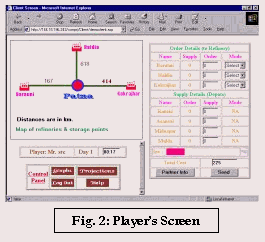
Instructions for Players
Administrator will make the players acquinted with the underlining theory and the basic principles of the game. A detailed instruction set can be found here.
Conducting Debriefing Session
For conducting debriefing sessions, administrator will distribute the graphs of different parameters (eg. total cost, order history, supply history etc). These graphs can be accessed from the administrator login, through 'Players' option in the left panel. The corresponding graph screens can be copied to memory by 'ALT+Print Screen' keys and then pasted on MsWord, and then taken printout once. Alternatively, individual prints can be taken by right-clicking on the screen and choosing 'Print'.
Preparing for next Game Session
From Administrator login, access 'Players' page and choose 'Remove All Players'. Then access 'Others' link and select all tables to delete (truncate) all the contents of those tables. This 2 steps will clear all the previous game specific data from database, and next game session can be played then. If, however, the administrator is interested in storing a particular game session data, it can be done by accessing the database (scm.mdb file). Open the file (located in the /scm directory) and select 'Save as' from the 'File' menu, to save this file by a different name. Other elegant methods like exporting table data etc. can also be performed. Then perform the above mentioned operations through the 'admin' login.
|